 LapVoice
How LapVoice works.
Everything from the first unzip to the last tenth. If a page here does not answer it, email hello@lapvoice.com.
Install
Download LapVoice-1.3.0-win64.zip from the download page and extract it anywhere you can write to. Run LapVoice.exe. There is no installer and no Python to install.
The first time, Windows SmartScreen may warn about an unrecognised publisher because the build is not code-signed. Choose More info → Run anyway. The app is a single executable; it writes to its own folder and to %APPDATA%\LapVoice, and nowhere else.
Requirements
- Windows 10 or 11, 64-bit.
- iRacing in windowed or borderless-windowed mode. Overlays are normal windows drawn on top of the sim; exclusive fullscreen hides them. VR is not supported.
- For AI tips: Ollama. The default model is sized for 8 GB graphics cards. Without Ollama, every overlay works and the coach uses simple built-in tips.
Activation
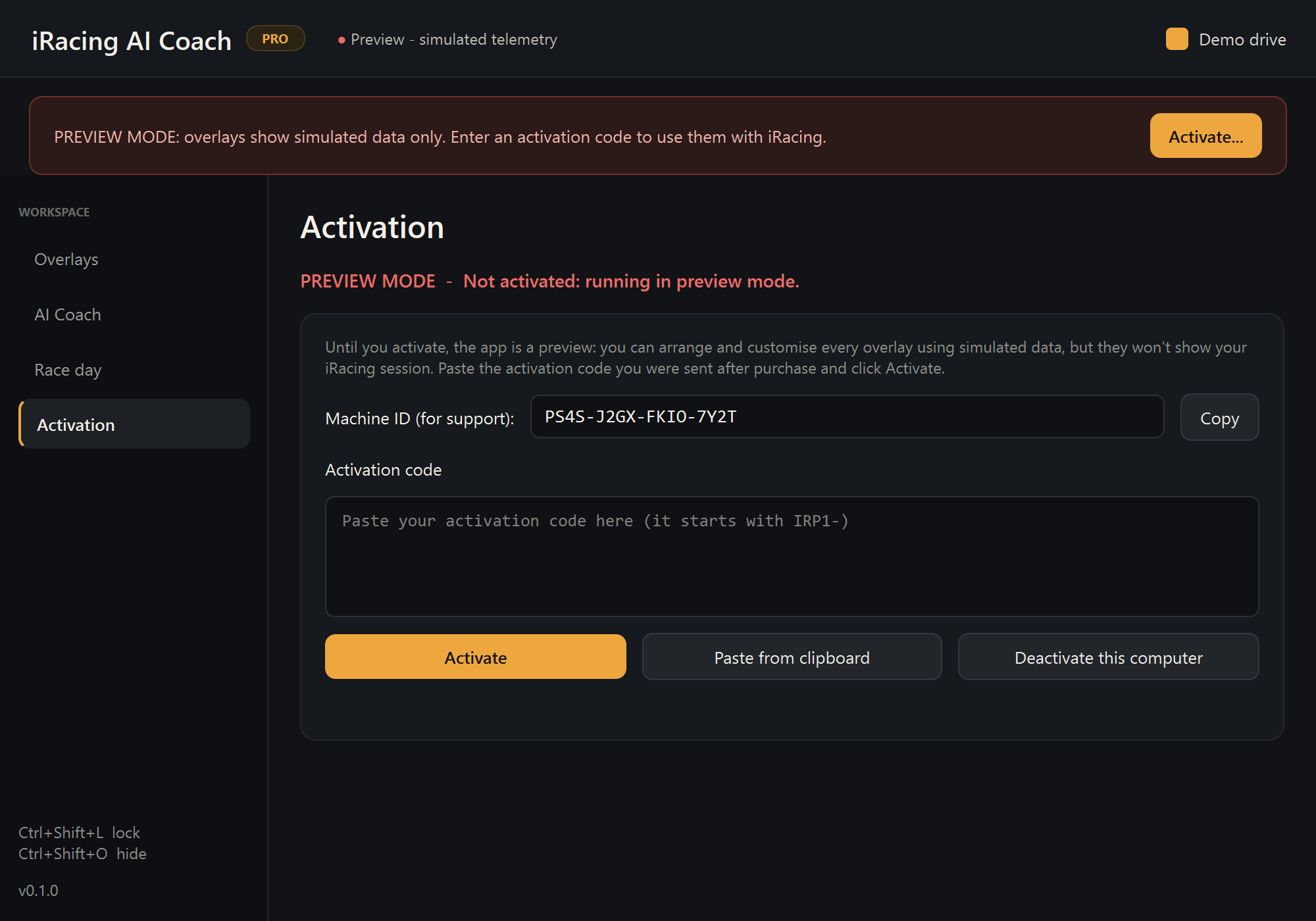
Until you enter a code the app runs in preview mode: every overlay can be arranged, resized and customised with simulated data, but each one carries a PREVIEW / NOT ACTIVATED mark and the app does not connect to iRacing.
- Open the Activation page in the control panel.
- Paste the whole code from your receipt email, even if it wrapped over several lines.
- Click Activate. Overlays switch to live telemetry straight away.
Keep the code private: it is tied to your PC and can be deactivated if it is shared. The Machine ID on that page is only needed if support asks for it. Full help: activation and moving PCs.
Layout and lock
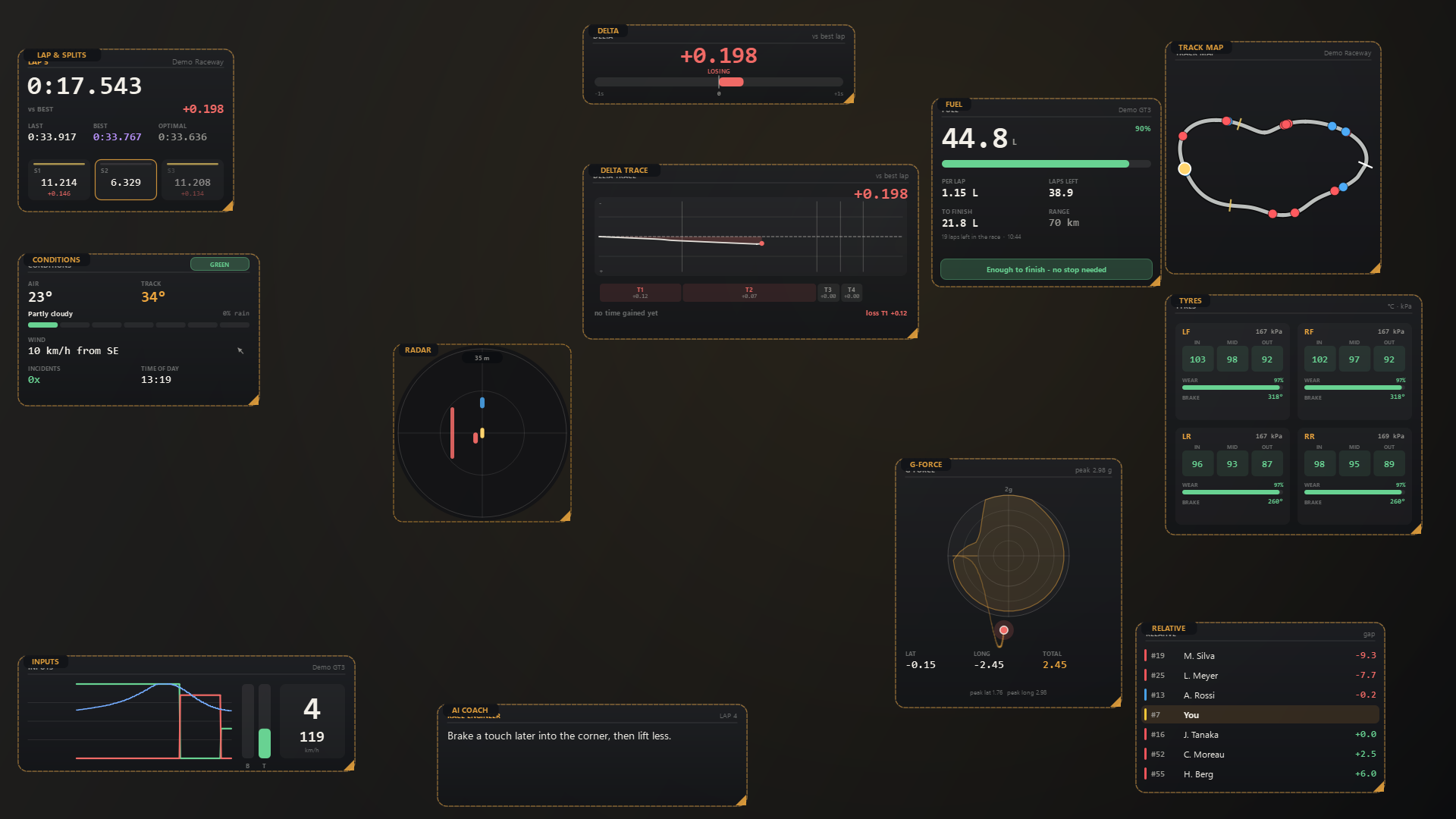
On first start the overlays are unlocked and the control panel opens. Without a code you are in preview mode, which is all you need to lay everything out.
- Move an overlay by dragging it. It snaps to screen edges.
- Resize it with the orange triangle in its bottom-right corner.
- Lock everything with the switch on the Race day page, the tray menu, or Ctrl+Shift+L while iRacing has focus.
Locked overlays are completely click-through, so the mouse always goes to the sim. Ctrl+Shift+O hides or shows all of them. Closing the control panel leaves the app in the system tray; Quit closes every overlay and ends the process.
Settings save automatically to %APPDATA%\LapVoice\settings.json. Reset all overlay positions on the Race day page recovers overlays that end up on a monitor you no longer use.
Overlays
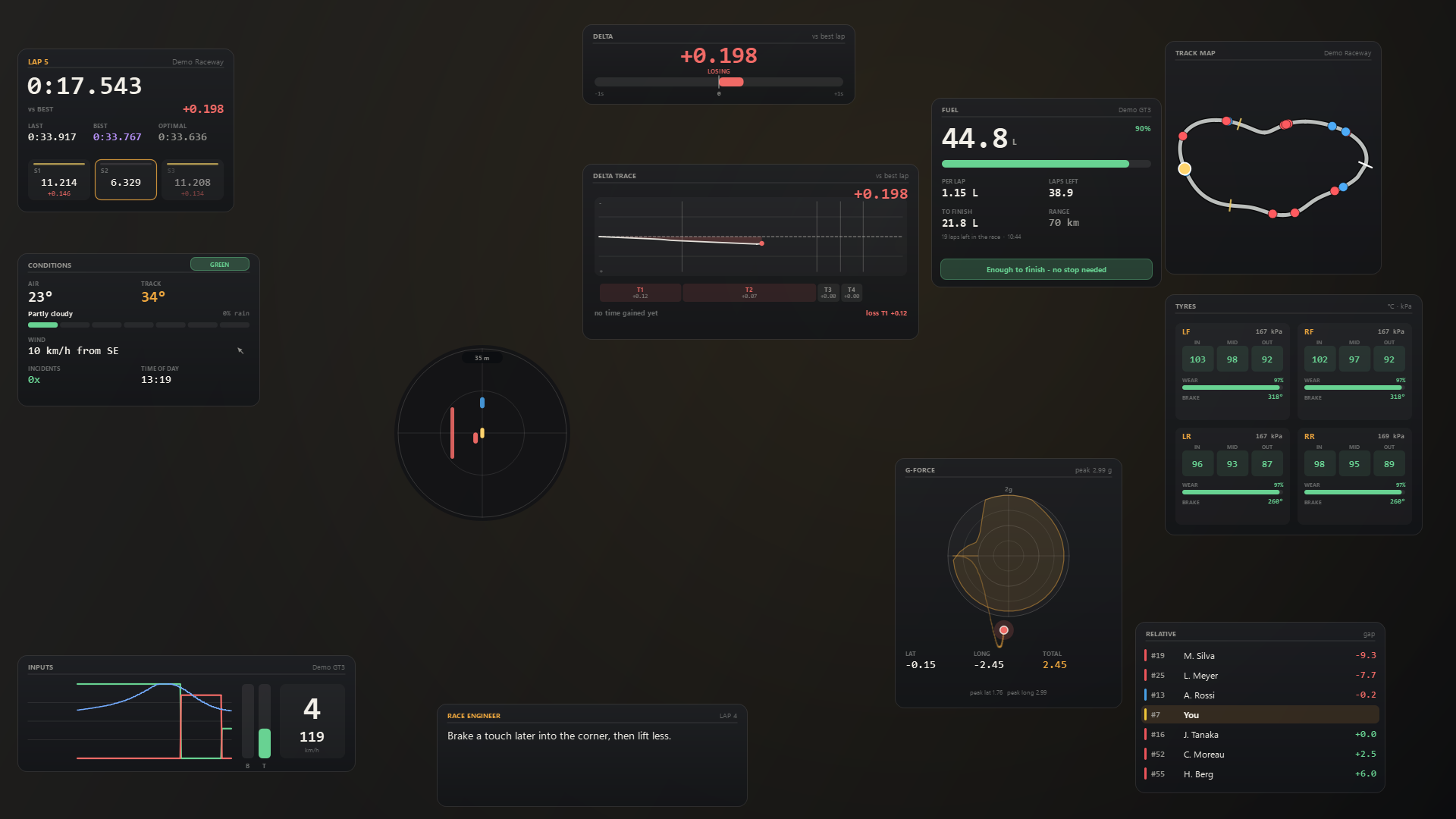
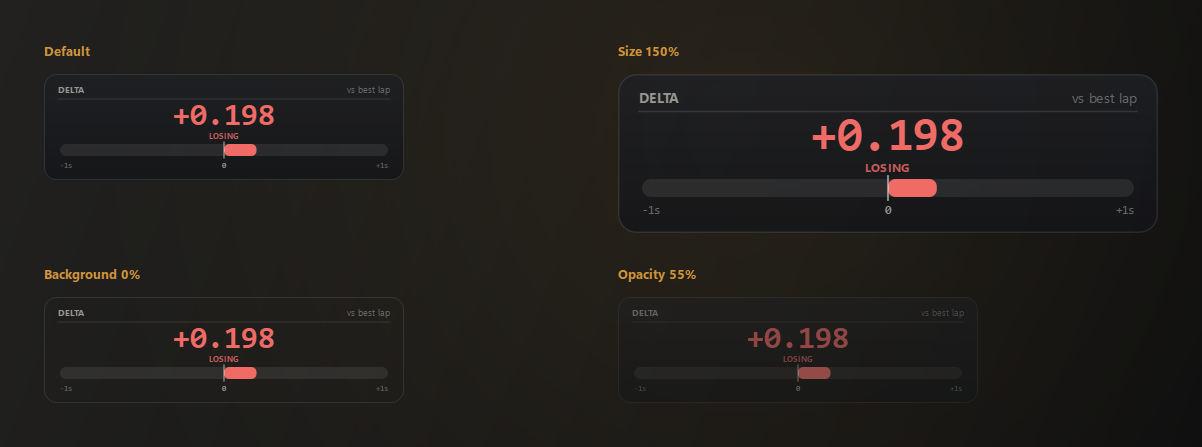
Control panel → Overlays, then pick one. Every overlay has opacity, background fade, size and a position reset; the options below are on top of those.
| Overlay | Shows | Options |
|---|---|---|
| Lap & splits | Current, last and best lap, optimal lap, live delta, sector splits in purple (best) or yellow (slower) | Sector splits, optimal lap, equal sectors for tracks that define none |
| Delta | Live time gained or lost against your best or last lap, as a bar | Reference lap, bar range |
| Delta trace | The whole lap as one line, green where you are up and red where you are down, with best and worst corners called out | Reference lap, trace range, corner marks, last lap as a ghost |
| Radar | Cars around you, with red side bars when someone is alongside | Range, rings, warning bars |
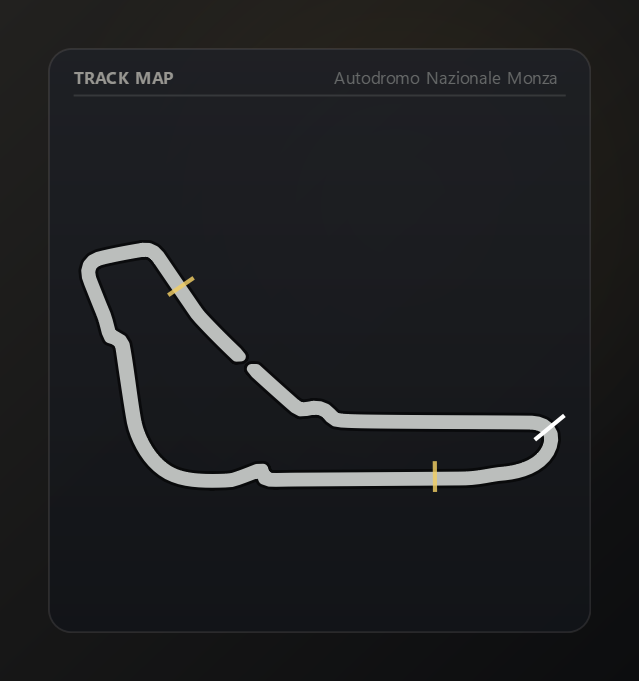
| Track map | The track, every car's position and sector markers | Line width, dot size, car numbers, sector markers |
| G-force | Live lateral and longitudinal load, a fading trail, peak G and a traction circle built from your own laps | Trail length, peak reset |
| Fuel | Fuel left, burn per lap, laps left, range, fuel needed to finish and whether a stop is required | Warn within, session distance, range in distance |
| Tyres | Inner, middle and outer temperatures, pressure, tread wear and brake temperature per wheel, coloured cold, optimal and hot | Pressures, wear, brake temperatures, hot-tyre warning |
| Conditions | Air and track temperature, sky, rain and track wetness, wind speed and direction, flag, incidents and time of day | Wind, incident count, time of day |
| Inputs | Throttle, brake and steering traces, gear and speed | History length, steering trace |
| Relative | Cars ahead and behind with estimated time gaps | Cars ahead, cars behind |
| AI coach | The latest tip, the same one you hear | Seconds on screen, idle placeholder |
Speed and fuel follow one setting: Race day → Units. Auto uses whatever iRacing is set to; you can force metric (km/h, litres) or imperial (mph, US gallons).
Not sure which to run in a sprint versus an endurance stint? The overlay guide picks them by what you need to know.
How the numbers are made
- Splits use the sectors iRacing defines, or equal sectors when it defines none. Best sectors only update from clean laps.
- Delta compares your position and elapsed time with your best clean lap of the session, so it needs one clean lap first.
- Track maps are bundled for all 424 iRacing layouts, including ovals, dirt, rallycross, legacy layouts and Mount Washington. If you drive a layout that is not bundled, the app learns it from your car's GPS as you drive and saves it.
- Delta trace uses the same two laps as the delta bar and marks corners from the shape of the track, so they are T1, T2 and so on in track order.
- G-force comes from iRacing's accelerometer channels. The traction circle is drawn from peaks you have actually pulled this session, not a generic circle.
- Fuel uses the tank size and level iRacing reports plus burn per lap measured from your laps. A session with no distance set shows the numbers but cannot call a stop.
- Tyres are iRacing's tread readings in Celsius, pressures in kPa, wear as remaining tread (1.0 is new). Not every car reports every channel; missing values show as
--and a car with none gets a clear message. - Conditions reads iRacing's weather and flag channels. Flags are prioritised red, disqualification, black, chequered, yellow, blue, white, green.
- Radar knows how far ahead or behind a car is, but not how far left or right. Cars sit in your lane unless iRacing's spotter says someone is alongside, so it is a spotter-style radar.
- Relative gaps are estimates, like most relatives, and are less exact under yellows or in the pits.
AI coach
The command-line coach is compiled into the app, so the only extra install is Ollama if you want AI tips.
- “Baseline lap set” on your first clean lap, then one spoken tip after each clean lap, also shown on the coach overlay.
- “New best lap” announcements.
- A session summary spoken when you quit, or on demand. Quit again to skip it.
- Pit laps and off-track laps are ignored. The baseline resets when you change car or track.
- Tips use the sim's units (km/h or mph).
- No-AI mode gives simple built-in tips with no GPU. The same fallback is used automatically if Ollama cannot be reached.
The AI Coach page covers model, Ollama address (another PC on the network is fine), tip frequency and voice. Check Ollama confirms the model is installed and reports how long it takes to answer. Download model fetches it for you. The default, llama3.2:3b, suits 8 GB cards.
Advanced settings live in config.local.yaml. The same files as the command-line coach. Press Edit advanced settings to open it. A typo in a settings file will not stop the app starting; it logs the problem and uses defaults.
Troubleshooting
- Run diagnostics first (Race day → Diagnostics, or
LapVoice.exe --diagnose). It lists the telemetry channels available right now; paste the result into any report. - Overlays invisible in iRacing: switch iRacing to windowed or borderless mode.
- “Waiting for iRacing”: start iRacing and get in the car. If iRacing runs as administrator, run LapVoice the same way.
- Overlay off-screen after changing monitors: Race day → Reset all overlay positions. Off-screen overlays are also re-placed at start-up.
- Tyres show
--or “No tyre telemetry”: that car does not expose tyre channels. Diagnostics shows which ones are missing. - Code will not activate: activation help.
- Flags:
--reset-settingsstarts fresh,--demoforces simulated data. - Log file: Race day → Open settings / log folder, then
log.txt.
Free command-line coach
The coach started as a command-line tool and it stays free. It is MIT-licensed, runs on Python, and needs no licence key or account: github.com/Spaced1127/lapvoice-cli.
Pro exists for people who want to see the lap as well as hear it. The overlays are the paid part; the spoken coaching is not.