 LapVoice
Which iRacing overlays to run.
An overlay only earns its space if it answers a question you actually have mid-lap. Most setups answer one and add five more that just add noise. Here is how to pick.
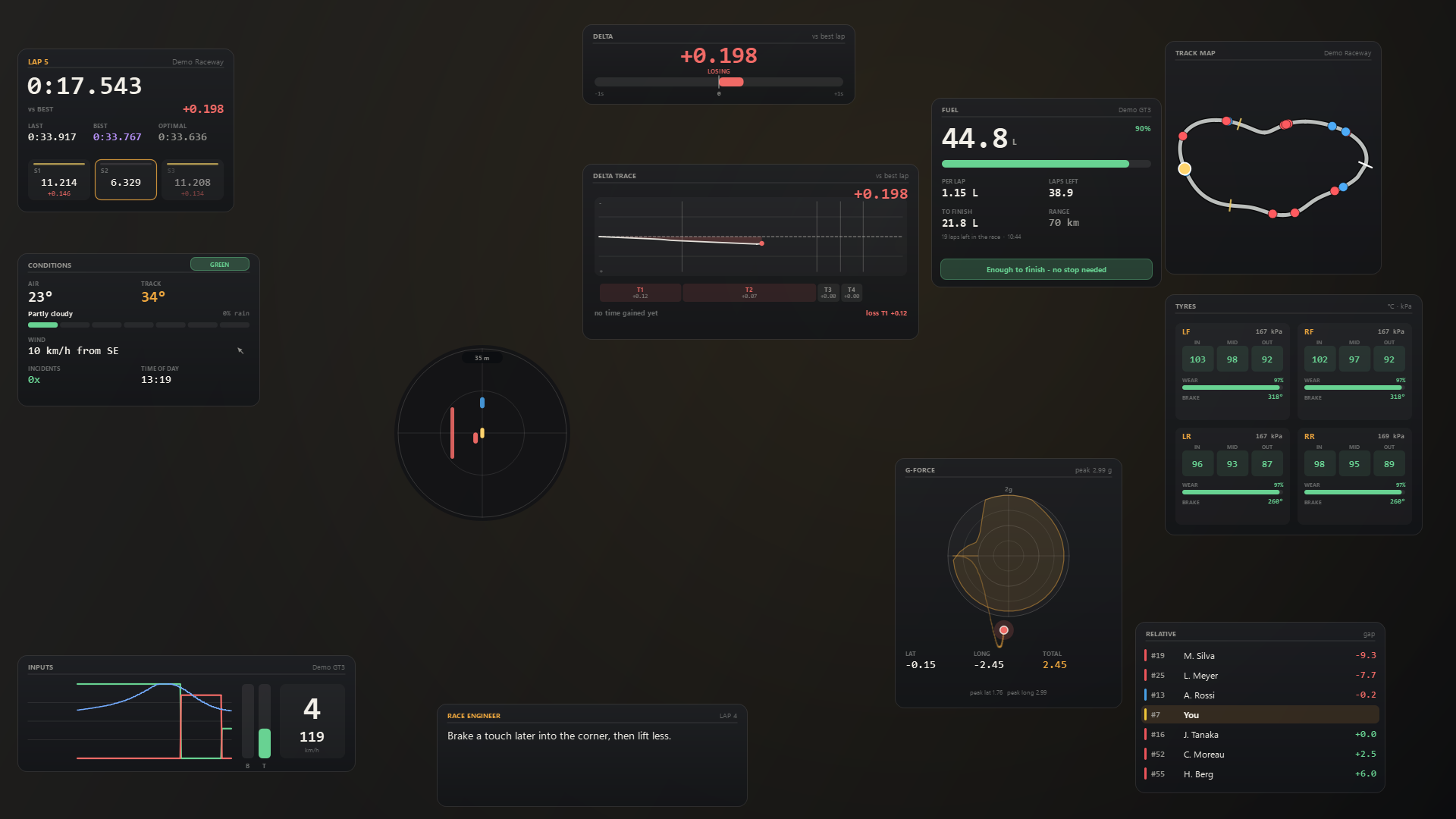
The four questions
Every useful overlay answers one of four questions. If a panel does not answer one of them, it is decoration, and decoration costs you the apex.
- Where am I losing time? Lap and sector times, the live delta, and the delta trace.
- Will I make it? Fuel left, burn per lap, laps remaining, and whether a stop is required.
- What is the car doing? Tyre temperatures and wear, brake temperatures, G-load, and the inputs you are actually giving.
- Who is around me? The relative, the radar, and the track map.
Which overlays to run in a sprint race
Sprints are short, so fuel is usually a non-issue and tyre wear rarely changes a decision. Keep the centre of the screen clear and run:
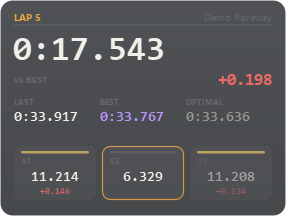
- Lap & splits in a top corner: current, last, best and optimal, plus sectors in purple or yellow.
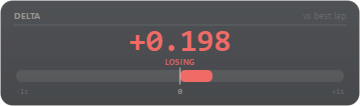
- Delta next to it: one number, readable in peripheral vision.
- Relative or radar, not both, near the centre-bottom where your eyes already go for the mirror.
That is three panels. If you are fighting for position, the delta bar earns its place more than the trace, because you need a glance, not a graph.
Which overlays to run in an endurance stint
Now the questions change. Fuel and tyres decide the race, and a pit stop you did not plan for costs thirty seconds.
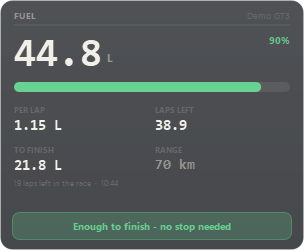
- Fuel: burn per lap, laps remaining, range, and the amount needed to finish. It can only call a stop when the session has a distance set.
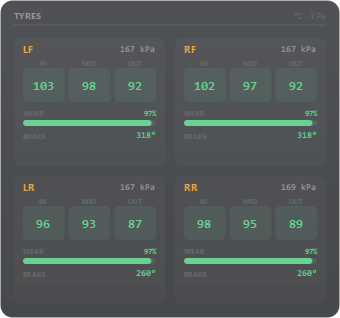
- Tyres: inner, middle and outer temperatures, pressures, wear and brake temperature per wheel. Not every car reports every channel; a car with none says so instead of showing zeros.
- Relative: gaps ahead and behind, so you know whether the undercut is on. Treat them as estimates, especially under yellows and in the pits.
- Delta, but not the trace: you are managing pace, not hunting a tenth.
The panels that are worth it only sometimes
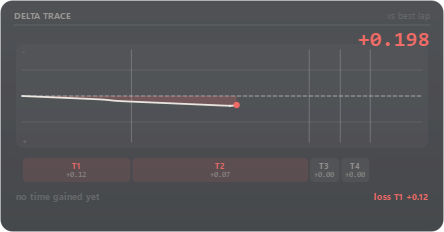
Delta trace is the best learning tool in the set: the whole lap as one line, green where you are up and red where you are down, with your best and worst corners called out. It is also a large graph. Run it in practice, not while defending a position.
Track map earns its space in multiclass and on tracks you do not know. It is drawn from bundled layouts for all 424 iRacing configurations, so it is there before you leave the pits. In a single-class sprint on a track you know, the relative does the same job with less screen.
G-force and inputs are practice tools. Watching your brake trace against your best lap teaches more than any number on a race lap.
Conditions matters when the weather is changing, and not much otherwise. Radar is a spotter, not a map: it knows how far ahead or behind a car is, not how far left or right.
How to lay them out so they stay out of the way
- Keep the centre clear. Nothing between the mirrors and the apex. Corners and edges, always.
- Group by question. Timing top-left, fuel and tyres top-right, traffic bottom-centre. Your eyes should not hunt.
- Fade the background, not the text. A panel background at 40% with full-strength text reads over any track.
- Size once, then lock. Locked overlays are click-through, so the mouse goes to the sim and never to a panel.
- Cut one panel a week. If you did not look at it in three races, it is costing you attention.
Doing it in LapVoice
LapVoice ships these twelve panels, each with opacity, background fade, size and a position reset, plus its own options. The preview build is the whole app with simulated data: lay out your screen before you spend anything, then buy a code when it has earned its place.
The spoken coach is separate, and free: the command-line coach is MIT-licensed and needs no key. Pro is for people who want to see the lap as well as hear it.
Full panel-by-panel detail, including every option, is in the documentation.